Creating a Word label template
To create a Word label template, you must insert Sage CRM merge fields and surround the template with the TableStart:Labels and TableEnd:Labels merge fields. The template must contain at least two label placeholders and the second placeholder must contain a Next field.
- Create a blank Word document and insert a one row table with enough columns for your labels. Size the cells and align the margins to your label.
- Click Insert | Quick Parts | Field.
- In the first column:
- Select MergeField from Field names and enter TableStart:Labels in Field name.
- Select MergeField from Field names and enter the name of the Sage CRM merge field in Field name.
- In each subsequent cell:
- Select Next from Field names. To display this field, select Show field codes instead of their values in Word Advanced Options. Alternatively, press ALT+F9.
- Copy the Sage CRM merge fields from the first column.
- Select MergeField from Field names and enter TableEnd:Labels in Field name.
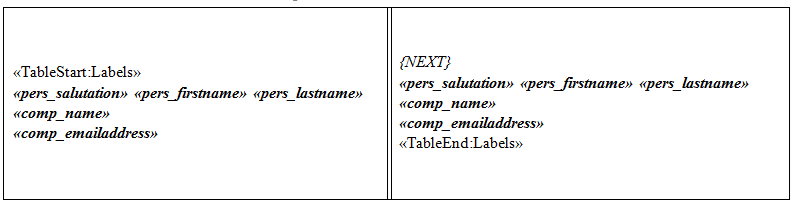
- Click File | Save As and save the template as .docx. You can upload the template and use it in a mail merge. For more information, see Uploading a Word template or image file. To share the template with other users, email it to your system administrator and ask the administrator to upload it to the global Shared Templates list.
- To preview the merge document, open a customer record and click Documents | Merge to Word or Merge to PDF, and click the template link. Your system administrator must enable Merge to Word.